
Your Artwork Archive Public Profile has a set of display choices you control: the layout of your artwork, your navigation style, your fonts, how many Pieces load at once, and the details visitors see with each Piece. Most of them live in the Layout & Display section of your Profile Settings, and you can preview every change before anyone else sees it.
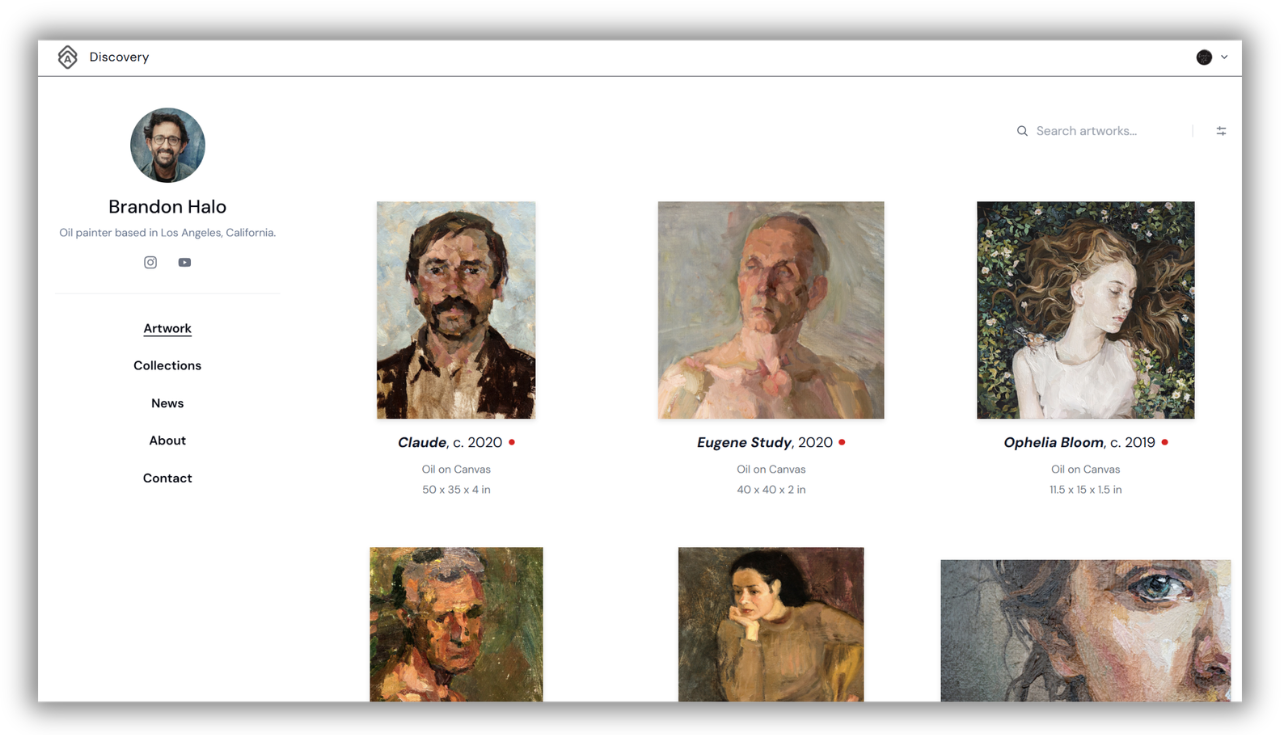
Where Your Public Profile Layout Settings Live
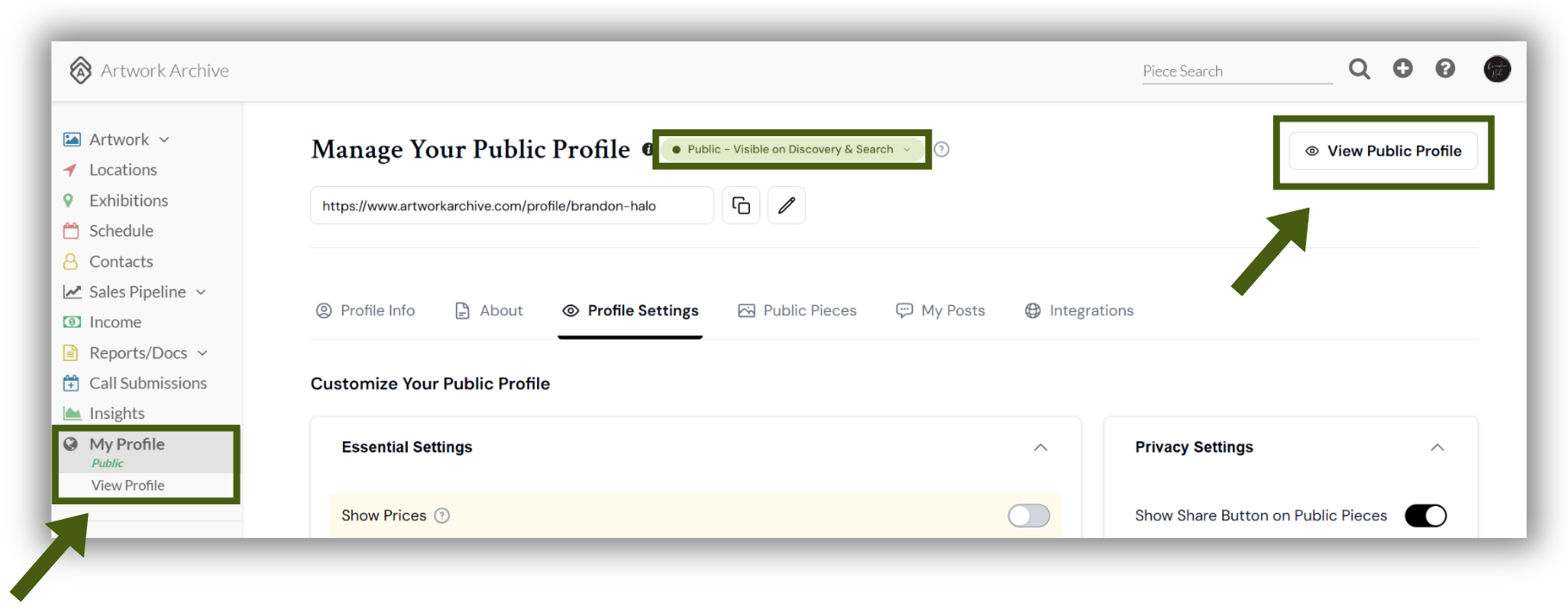
Click My Profile on the left-side menu
Select Profile Settings at the top
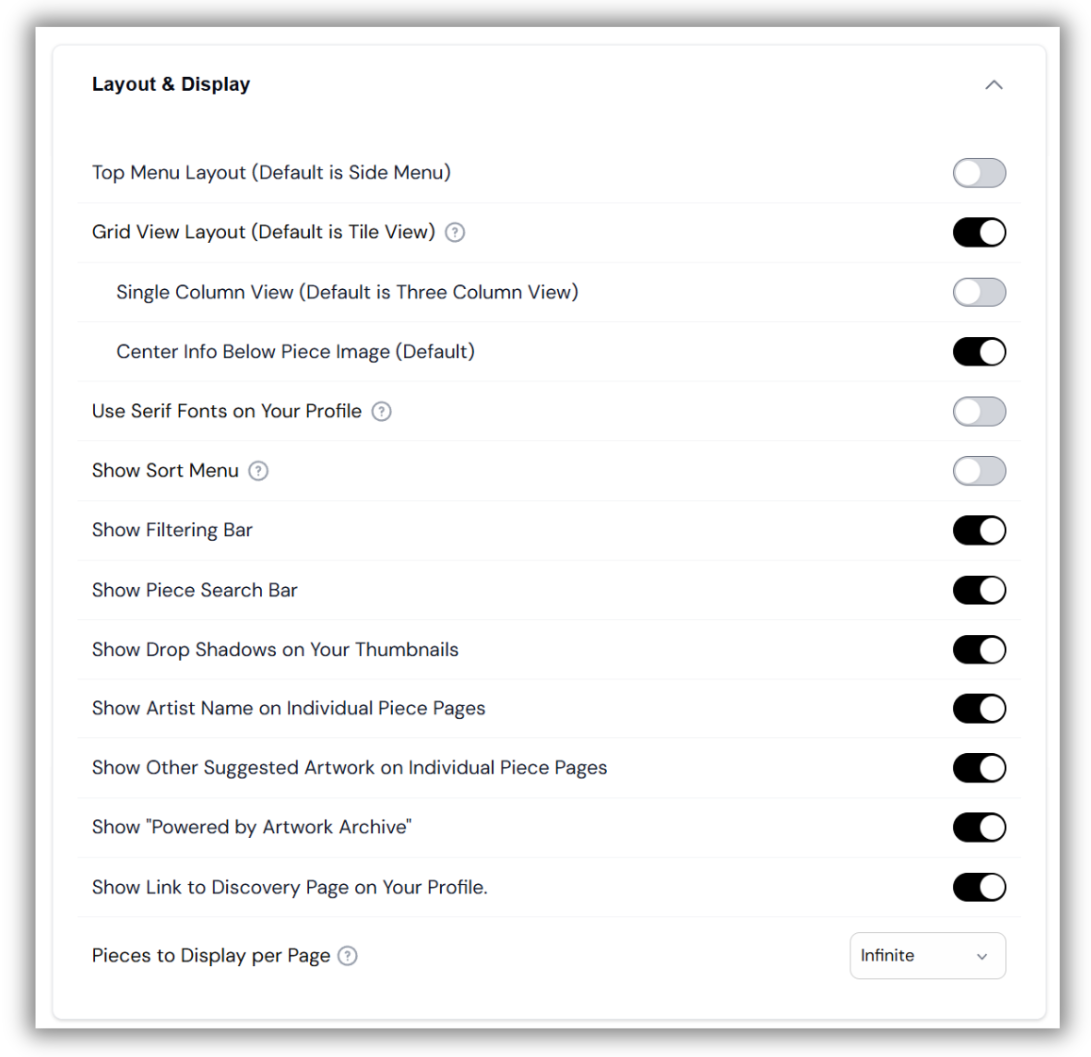
Scroll down to Layout & Display and select the arrow to expand the section
Your changes save as you make them and appear on your Public Profile right away. Unless noted otherwise, every setting below lives in this section.
Choose Tile View or Grid View for Your Artwork and Collection Pages
This setting applies to your Artwork page and to the Pieces inside each individual Collection, so the two always match. Tile View and Grid View show the same Pieces and the same details. The difference is how the images are arranged.
In Layout & Display, find Grid View Layout (Default is Tile View)
Toggle it on for Grid View, or leave it off to stay in Tile View
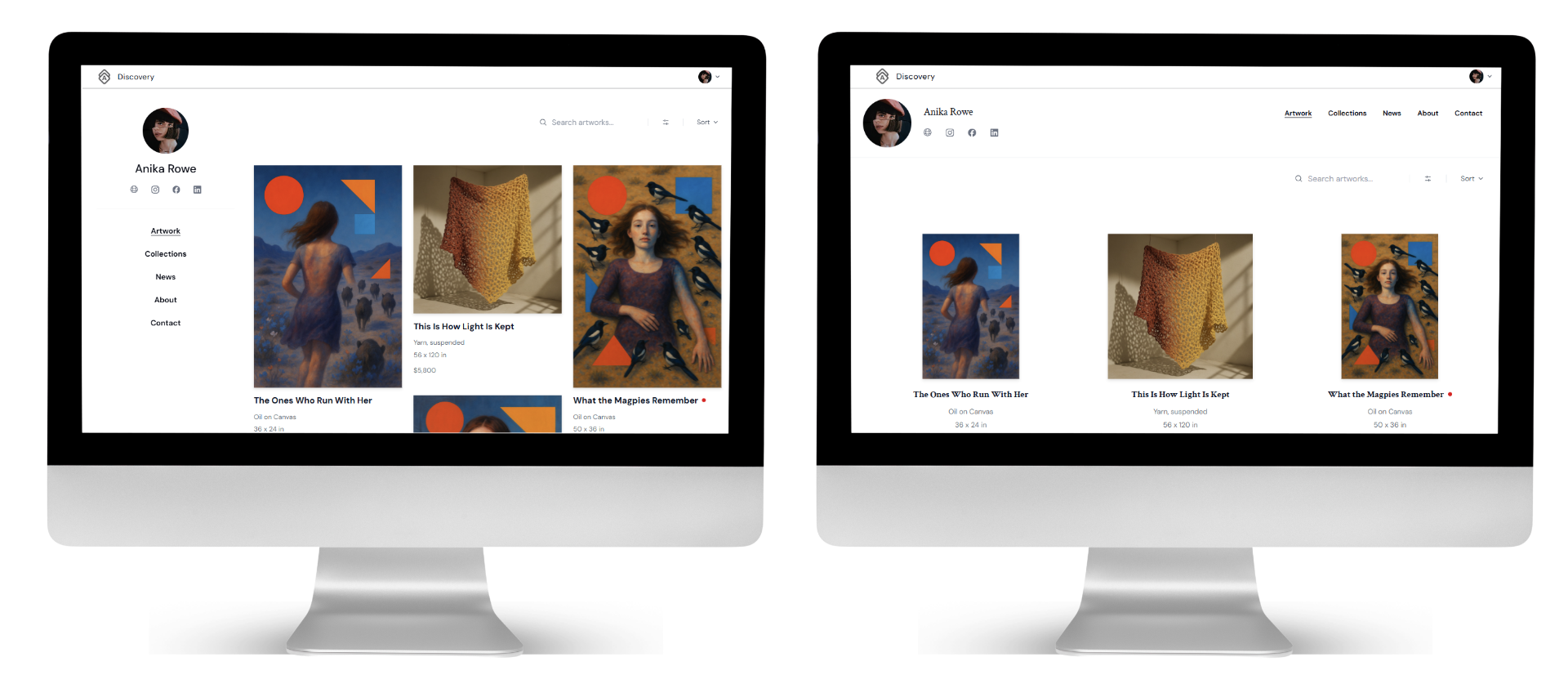
Tile View (left) and Grid View (right)
Tile View (Default)
Tile View arranges your images at their natural proportions so they fill the available space, with no uniform spacing between them. The effect is dense, with a gallery-wall feel, and the artwork does the talking.
Because the layout fits images together based on their dimensions, the order in which Pieces appear can shift depending on the size of the visitor's screen.
Tile View works well when:
Your artwork varies in orientation, mixing portrait, landscape, and square
You want the images themselves to be the focus
You are showing a larger body of artwork and want a full, immersive feel
Grid View
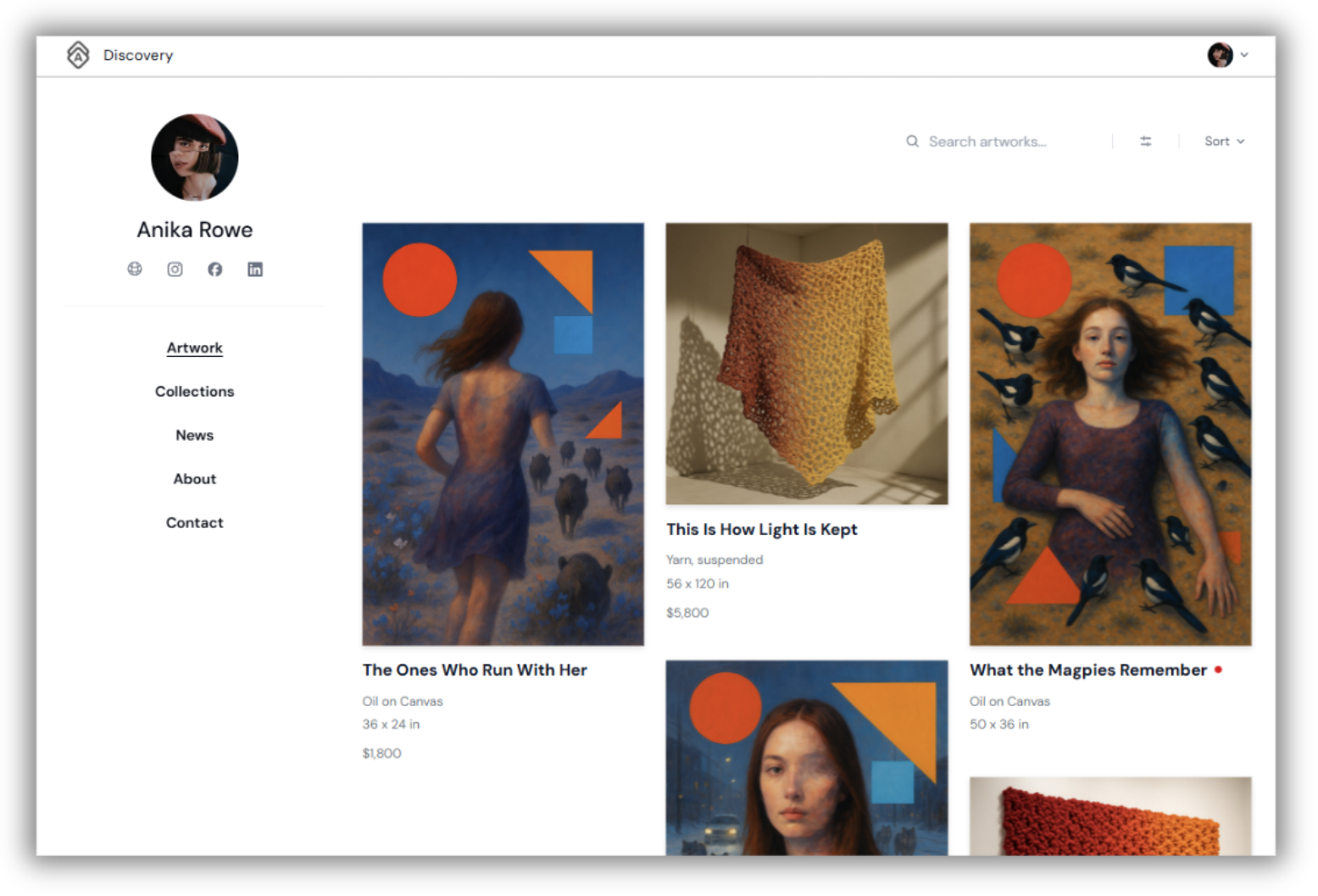
Grid View arranges your artwork in evenly spaced columns. Every Piece gets equal visual weight regardless of its dimensions, and the order you set is preserved exactly as visitors see it. Artwork details appear below each image.
Grid View works well when:
You want precise control over the order visitors see, which you can set in How to Customize the Order of Artworks on your Public Profile
Visitors are comparing details like price, medium, and dimensions
Your artwork is similar in orientation and you want a clean, consistent presentation
Fine-Tune Your Grid View Layout
Two more options appear underneath Grid View Layout.
Single Column View (Default is Three Column View) displays one large artwork per row instead of three across. Worth using when your artwork rewards a closer look, or when your images carry a lot of detail that gets lost at thumbnail size.
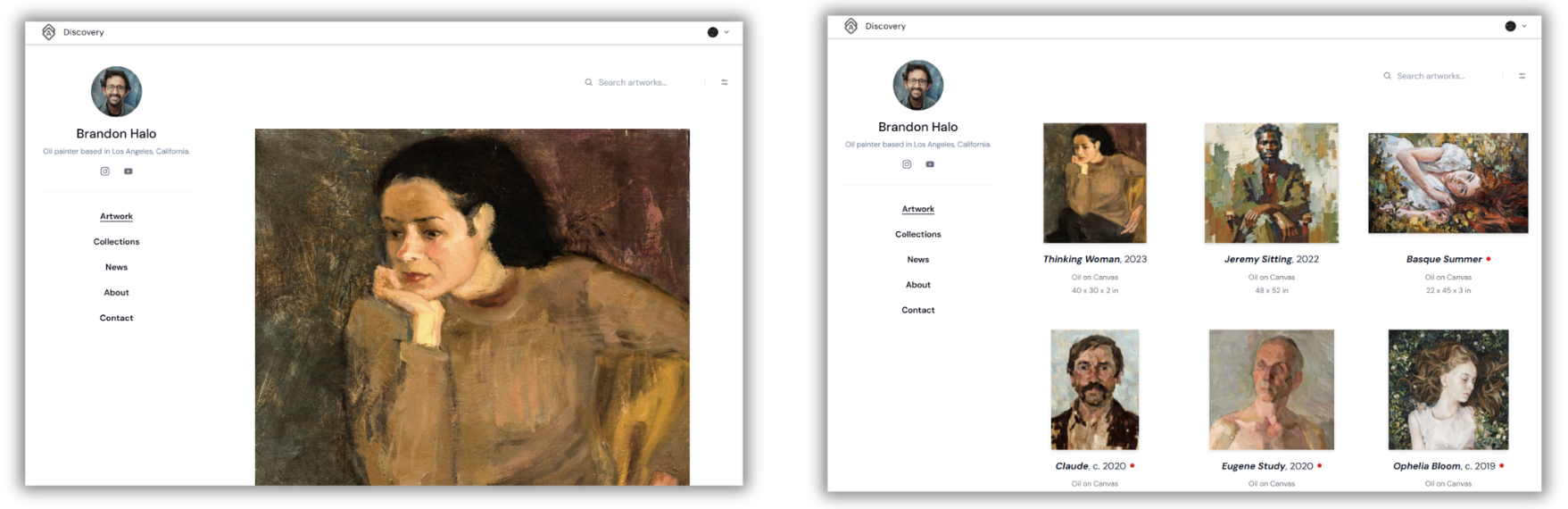
Single column versus three columns (default) for Grid View
Center Info Below Piece Image (Default) centers each Piece's details under its image. Turn it off to align that text to the left instead.
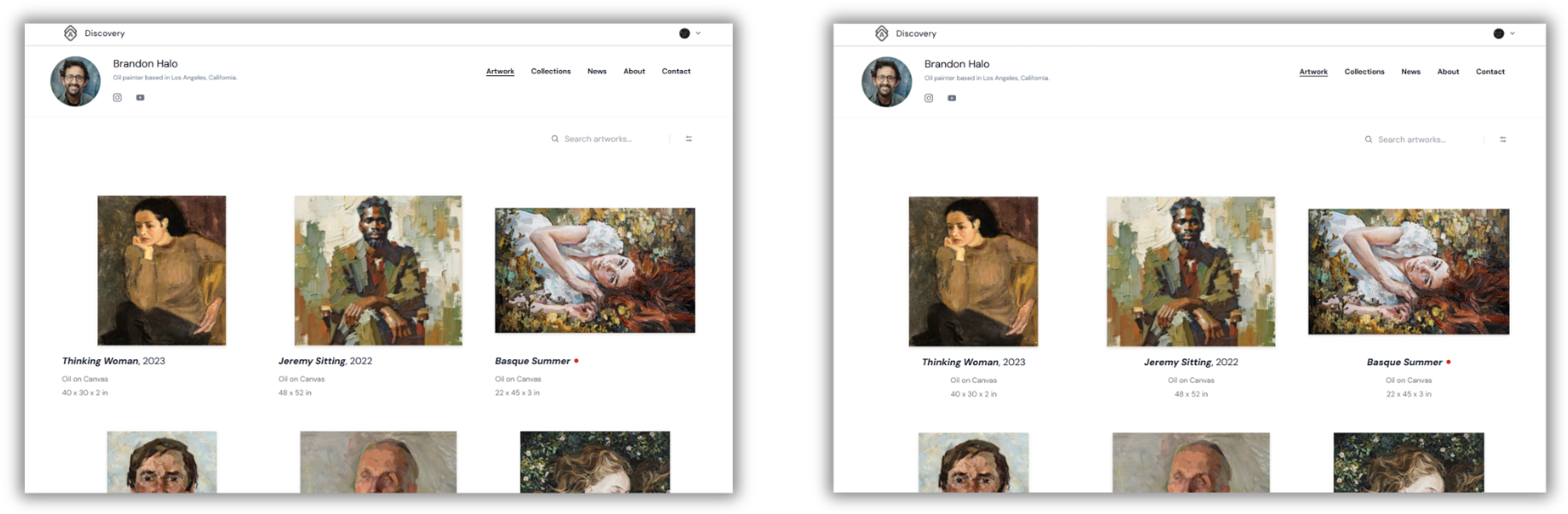
Left-align versus Center-align (default) for Grid View
Choose Side or Top Navigation for Your Public Profile
Toggle on Top Menu Layout (Default is Side Menu) to move your Public Profile navigation from the left side of the page to a horizontal menu across the top.
Side navigation keeps your name and links in view as visitors scroll. Top navigation gives your artwork the full width of the page. Neither changes what appears in the menu.
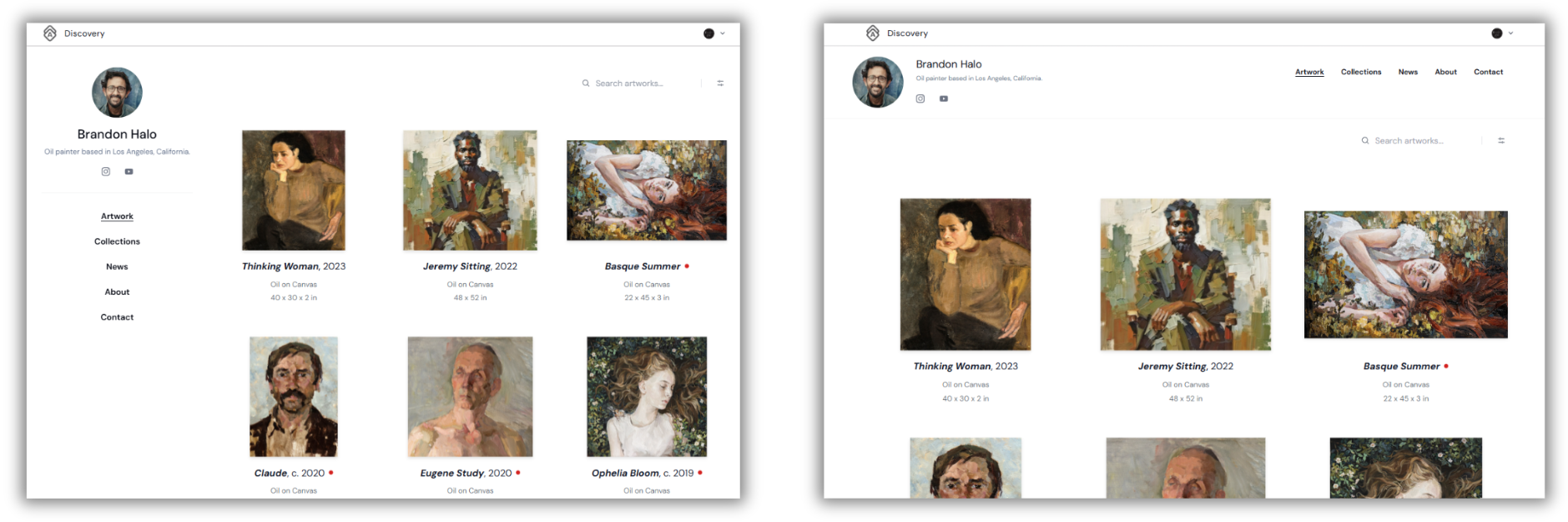
Side Menu (default) versus Top Menu
Choose Serif or Sans-Serif Fonts for Your Public Profile
Toggle on Use Serif Fonts on Your Profile for serif headings and titles, or leave it off for sans-serif throughout. Serif tends to read as more traditional and gallery-like, while sans-serif reads as more contemporary.
Show the Piece Name or the Artist Name First
This one lives in Essential Settings rather than Layout & Display.
Click My Profile on the left-side menu, then select Profile Settings
Scroll to Essential Settings
Toggle on Show Piece Name first (Default is Artist Name first)
By default, visitors see the artist name above the Piece name. Turn this on if you would rather the artwork title lead.
Set How Many Pieces Load per Page, or Turn On Infinite Scroll
Use the Pieces to Display per Page dropdown to choose how much artwork appears before a visitor moves to the next page. You can choose 10, 25, 50, 100, or Infinite.
Selecting Infinite turns on infinite scroll, so more of your artwork loads automatically as visitors scroll rather than asking them to click through pages. It suits a large body of artwork you want people to browse without interruption.
A set number suits a curated selection where you want visitors to pause between pages. Fewer Pieces per page will also load more quickly, which is worth considering if your images are large.
Adjust Drop Shadows, Suggested Artwork, and Other Display Details
The rest of the section is a set of on-or-off choices.
Show Drop Shadows on Your Thumbnails adds a soft shadow behind each artwork thumbnail.
Show Other Suggested Artwork on Individual Piece Pages displays more of your artwork when a visitor is looking at a single Piece, which keeps them browsing.
Show "Powered by Artwork Archive" displays the Artwork Archive credit on your Public Profile.
Show Link to Discovery Page on Your Profile adds a link from your Public Profile to Artwork Archive's Discovery page, where collectors browse Public Profiles.
Let Visitors Sort, Filter, and Search Your Artwork
Three more toggles in Layout & Display hand browsing control to your visitors: Show Sort Menu, Show Filtering Bar, and Show Piece Search Bar.
Filters only work with the data you have chosen to make public. If prices are hidden on your Public Profile, visitors will not be able to filter by price. For the full walkthrough, see How to Set Up and Customize Your Artwork Archive Public Profile.
Which Layouts Can You Change, and Which Does Artwork Archive Set for You?
Tile View and Grid View apply to your Artwork page and to the Pieces inside each individual Collection. The rest of your Public Profile uses a layout built for that kind of content, so there is nothing to configure.
Your Artists page always displays as a grid.
Your Collections page displays as cards, one for each Collection. For more on building them, see Making Collections of Your Artwork.
Preview Your Public Profile Before Your Changes Go Live
You do not need to make your Public Profile public to see how it looks. While your profile is still private, click Preview as a Visitor in the top right to see exactly what visitors will see as you adjust your display settings.
Once your Public Profile is public, that button becomes View Public Profile.
Key Takeaways
Tile View and Grid View apply to your Artwork page and to the Pieces inside each individual Collection. Tile View fills the space with images at their natural proportions, while Grid View keeps even columns and preserves your exact order.
Single Column View and Center Info Below Piece Image are sub-options of Grid View Layout, not settings on their own.
Navigation style, fonts, and how many Pieces load per page are all set in Profile Settings under Layout & Display.
Infinite scroll is not a separate toggle. It is the Infinite option in the Pieces to Display per Page dropdown.
Show Piece Name first lives in Essential Settings, not Layout & Display.
Your Artists page and Collections page use set layouts that you do not configure.
Preview as a Visitor lets you check every change while your Public Profile is still private.
See Everything That Changed in the Public Profile Update
For a tour of the full redesign, see Public Profile: What's New for You and Your Visitors.