
Your Artwork Archive Public Profile displays your artwork in the order you set. Turning on the Sort Menu and the Filtering Bar lets visitors rearrange and narrow that view while they browse, so a collector looking for a small available piece within a certain budget can find it without scrolling through everything you have made public. You choose which of these controls appear, and you can turn them off again at any time.
What Visitors Can Do When You Turn On Sorting and Filtering
Each control is a separate setting, so you can offer one, all of them, or none.
Sort Menu. Visitors re-sort your artwork themselves while they browse.
Filtering Bar. Visitors narrow your artwork by price, size, and availability.
The Availability filter is the one exception. It appears only if you are already showing artwork status on your Public Profile, which means turning on Show Sold Status or Show All Statuses (Sold, Not for Sale, Reserved, etc.) under Essential Settings. Price and size filtering are not affected.
Piece Search Bar. Visitors search your artwork by title, medium, and other Piece details.
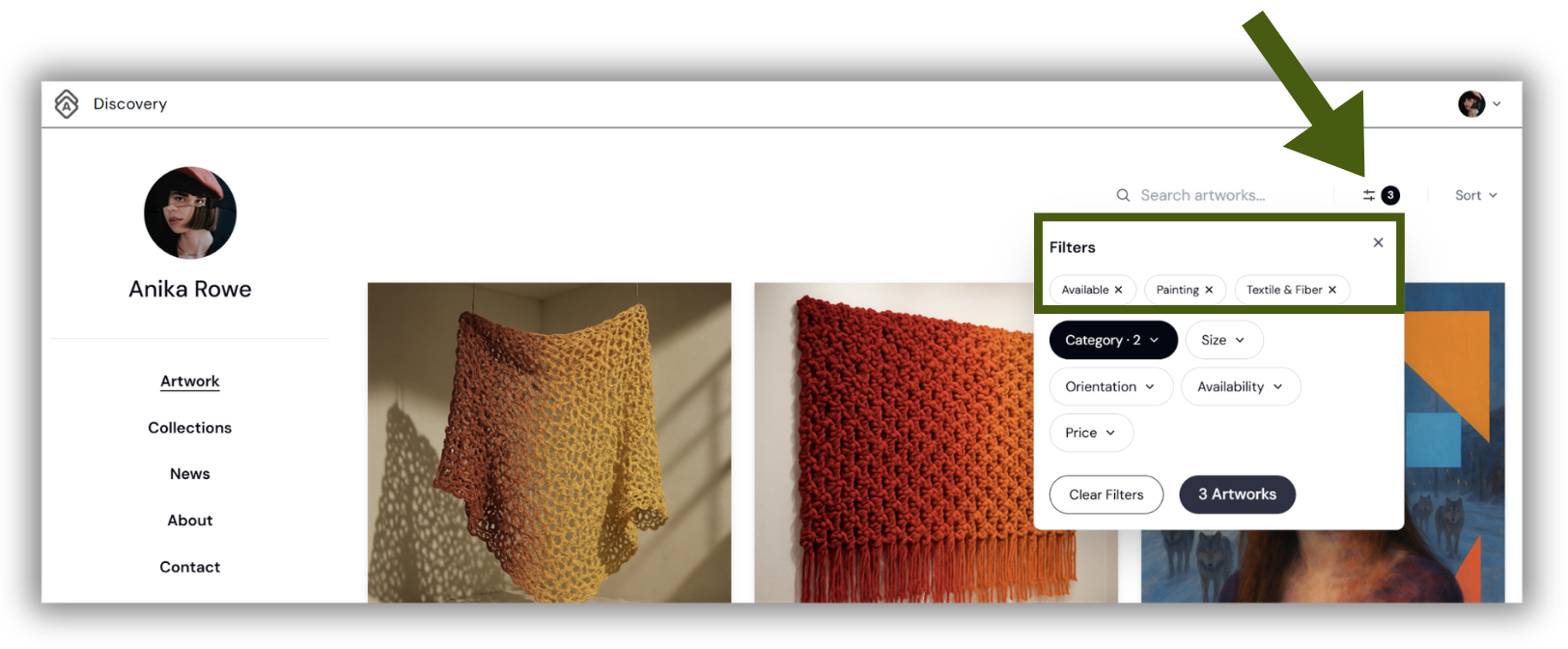
Category filter. Visitors browse by category and subcategory, and can select more than one at a time.
Search results stay inside the page a visitor is already exploring. On a Collection page, an Artist page, or an Exhibition page, searching narrows that page rather than sending the visitor back out to your full Artwork page.
Did you know?
These controls are entirely optional. If you would rather every visitor see your artwork in exactly the sequence you arranged, leave the Sort Menu and Filtering Bar turned off. Your Public Profile works the same way it always has.
How to Turn On the Sort Menu, Filtering Bar, and Piece Search Bar
Click My Profile on the left-side menu
Select Profile Settings at the top
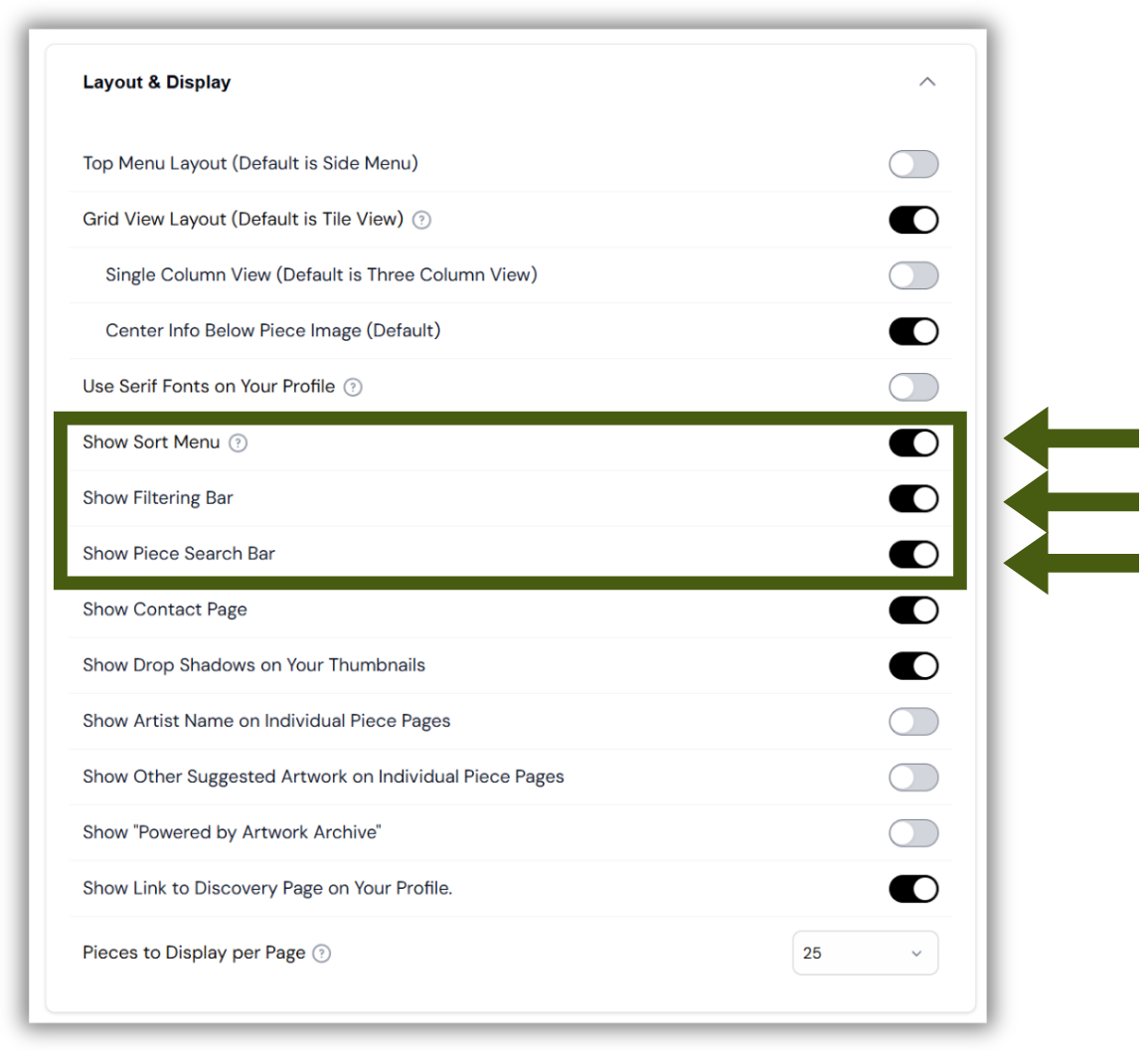
Find the Layout & Display panel
Toggle on Show Sort Menu to give visitors the sorting control
Toggle on Show Filtering Bar to let visitors narrow by price, size, and availability
Toggle on Show Piece Search Bar to add a search box to your Artwork page
Did you know?
You can see these controls before your profile is public. While your profile is still private, go to My Profile and click Preview as a Visitor at the top right of your Manage Your Public Profile page to see exactly what a visitor will see. Once your profile is public, that button reads View Public Profile.
The Sort Menu and Filtering Bar sit alongside the other display choices in Layout & Display, including navigation style, Tile View and Grid View, fonts, and how many Pieces appear per page. See How to Change the Layout of Artworks on Your Public Profile.
How Visitors Filter Your Artwork by Category and Subcategory
The category filter lets visitors narrow your artwork to the kind of work they came for, such as painting or sculpture, and then narrow further by subcategory. Visitors can select more than one category at once, so someone interested in both works on paper and prints can see them together.
This filter draws on the category information recorded on your Pieces, so the more complete your Piece records, the more useful it is to a visitor.
How Visitor Sorting Affects the Artwork Order You Set
It does not change it. The order you set is what every visitor sees when they arrive. If a visitor re-sorts your artwork, that applies only to their own visit, and the next person still lands on your order.
To set that order, whether you arrange your Pieces by hand or let Artwork Archive keep them sorted for you, see How to Customize the Order of Artwork on Your Artwork Archive Public Profile.
Frequently Asked Questions About Sorting and Filtering Your Public Profile Artwork
Do I have to turn these on?
No. Every one of these controls is off unless you turn it on, and turning one off later removes it from your Public Profile straight away. Nothing about your artwork or your Piece records changes either way.
Will visitors see prices if I turn on the Filtering Bar?
Filtering by price is only useful to a visitor who can see prices, and whether prices display at all is controlled separately under Essential Settings with Show Prices. See How to Set Up and Customize Your Artwork Archive Public Profile.
Why Don't Visitors See the Availability Filter?
Your Filtering Bar is on, but the Availability filter needs artwork status to be public before it has anything to show. Turn on Show Sold Status or Show All Statuses (Sold, Not for Sale, Reserved, etc.) under Profile Settings > Essential Settings, and the Availability filter appears.
Turning those status settings off hides the Availability filter only. Your Filtering Bar stays in place, and so does filtering by price and size. The only thing that removes the Filtering Bar entirely is turning off Show Filtering Bar under Layout & Display.
Which page do visitors land on first?
That is your choice, set separately from these controls. See How to Set the Default Landing Page for Your Artwork Archive Public Profile.
Did you know?
There is a full guide to everything that changed. For everything new in your Public Profile, see Public Profile: What's New for You and Your Visitors.