You want your Invoices to reflect your brand, but you do not want to build them from scratch every time. Add your logo or headshot and a custom letterhead once, and every Invoice you send carries them.
Add Your Logo or Bio Photo to Invoices
Navigate to the My Profile tab in your left-side menu
Select Profile Info in the top menu
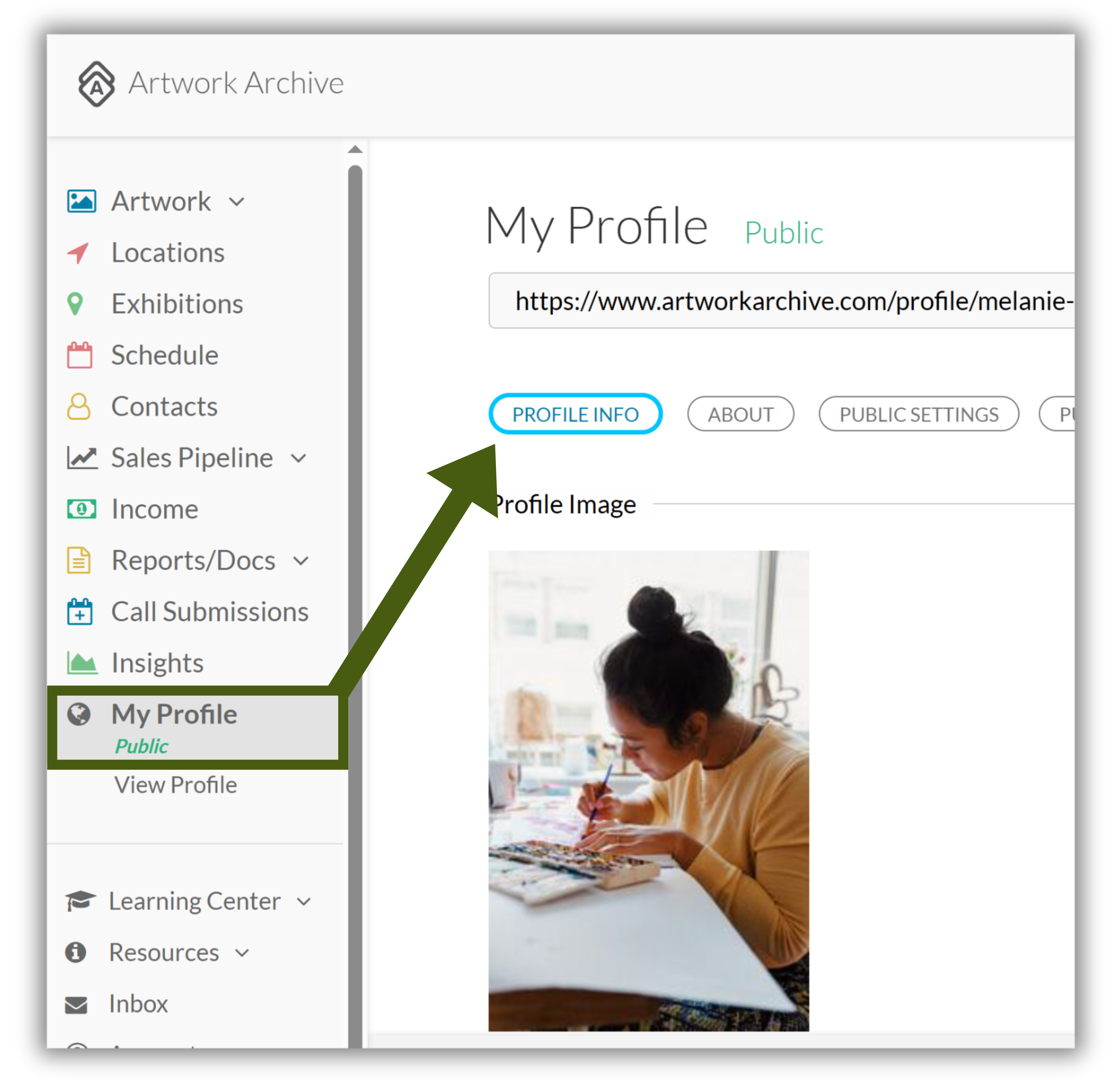
Upload a bio photo and a logo
Select Save
Did you know?
If you upload both a bio photo and a logo, the logo is the one applied to your online Invoices and Invoice URLs.
Add a Custom Letterhead to a PDF Invoice
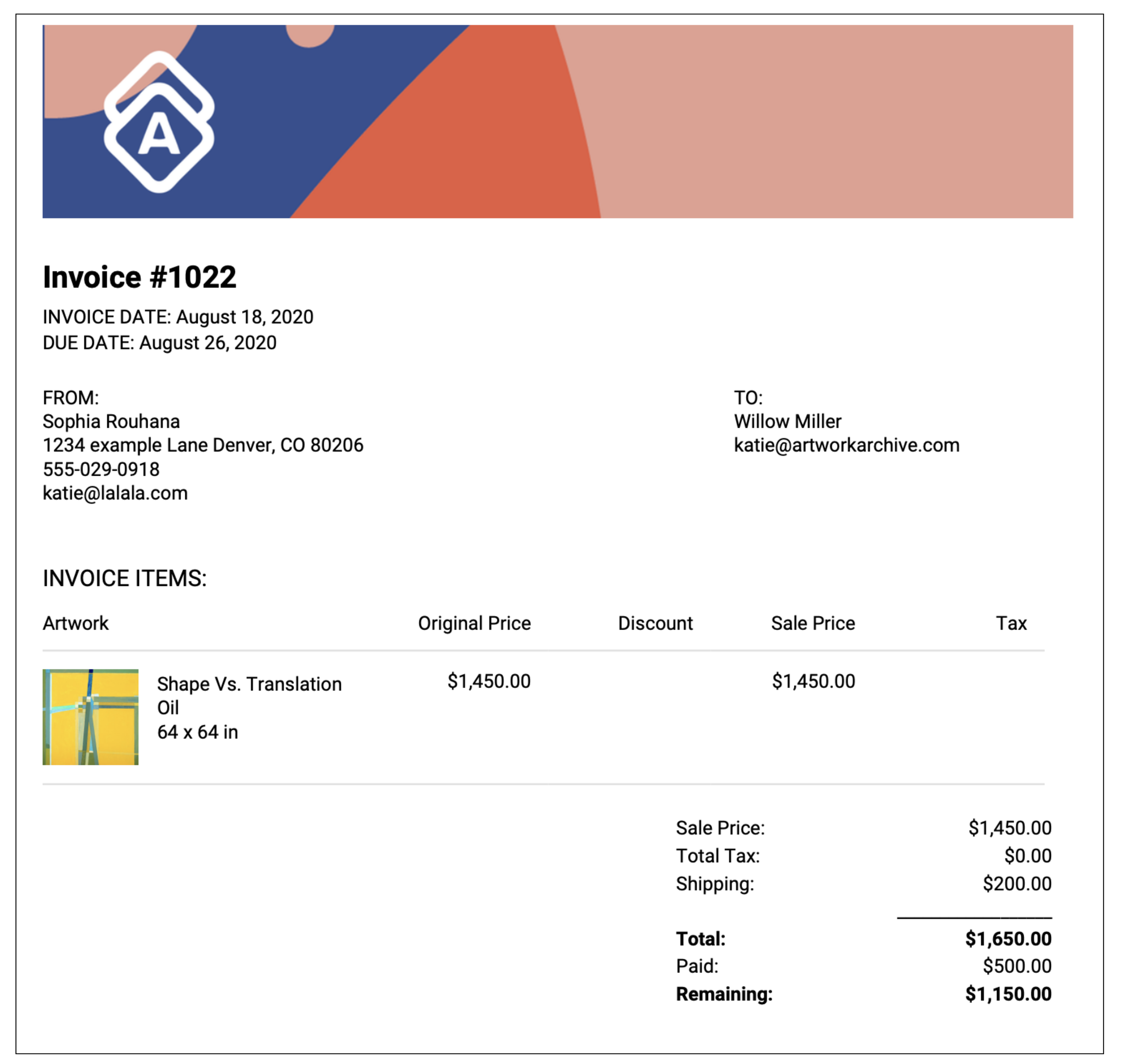
PDF Invoices can carry a custom letterhead. That letterhead is the Saved Header on your Reports page, the same image your Reports use, so you only upload it once.
Navigate to Reports/Docs > Reports in your left-side menu
Select Saved Header at the top right of the page
Under Report Header, select Choose File and upload your letterhead
The recommended size for header images, Invoices included, is 1600px by 300px
Select Save Header
Create your Invoice
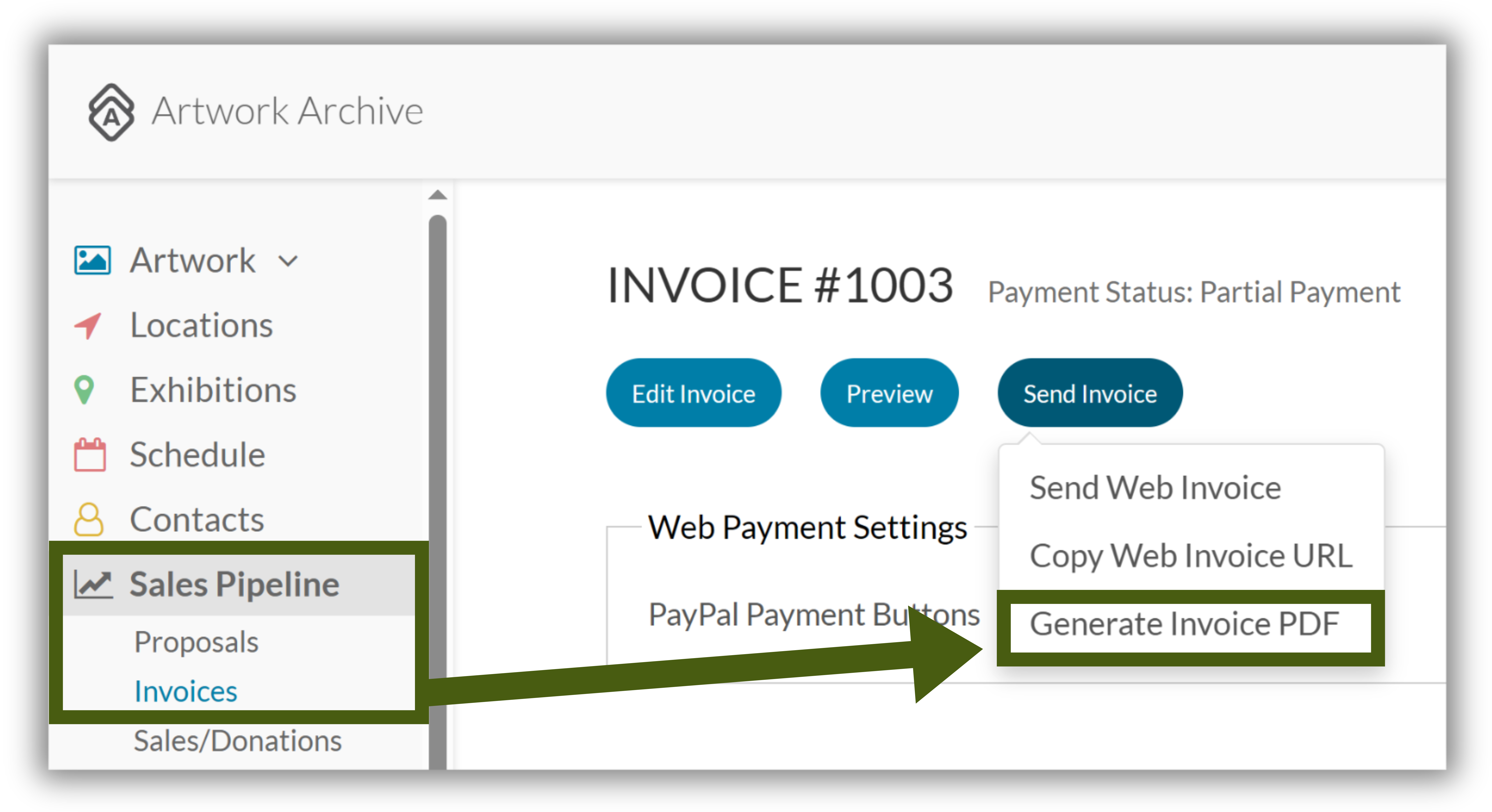
When you are ready to send it, select Generate Invoice PDF
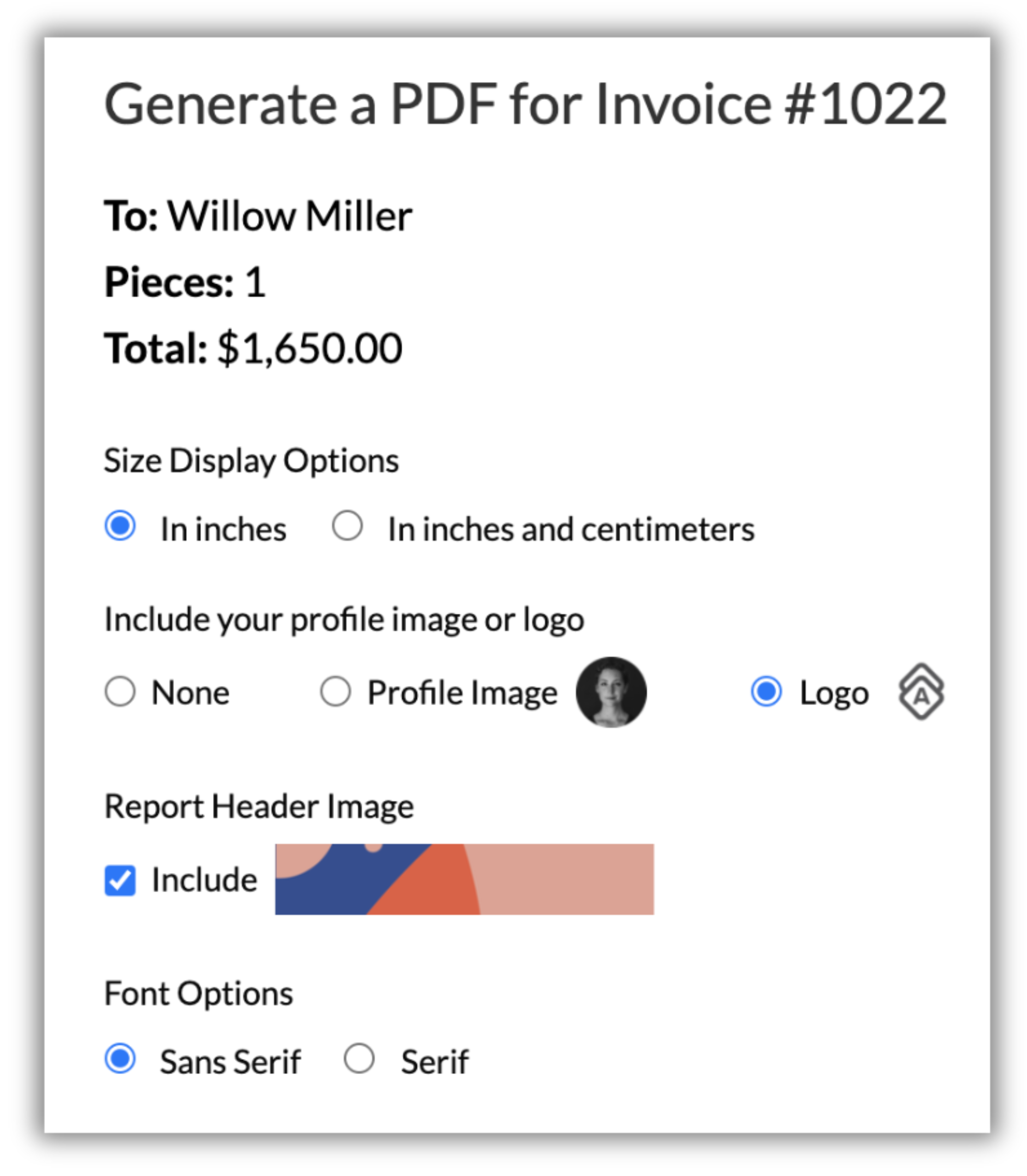
Choose the details you want to include, then generate your PDF
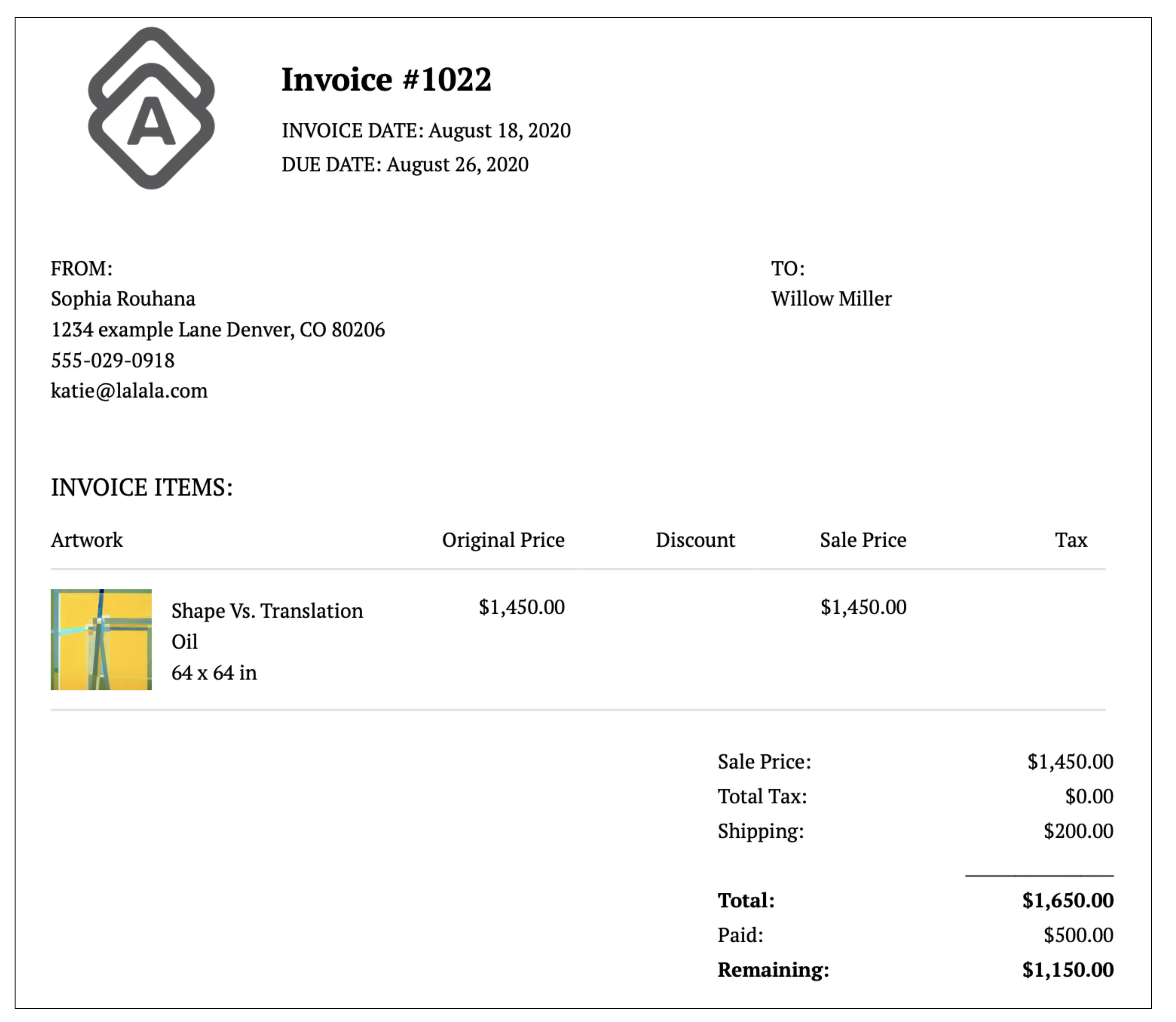
PDF Invoice Example with a Logo
PDF Invoice Example with a Letterhead
Set Default Notes on Every Invoice
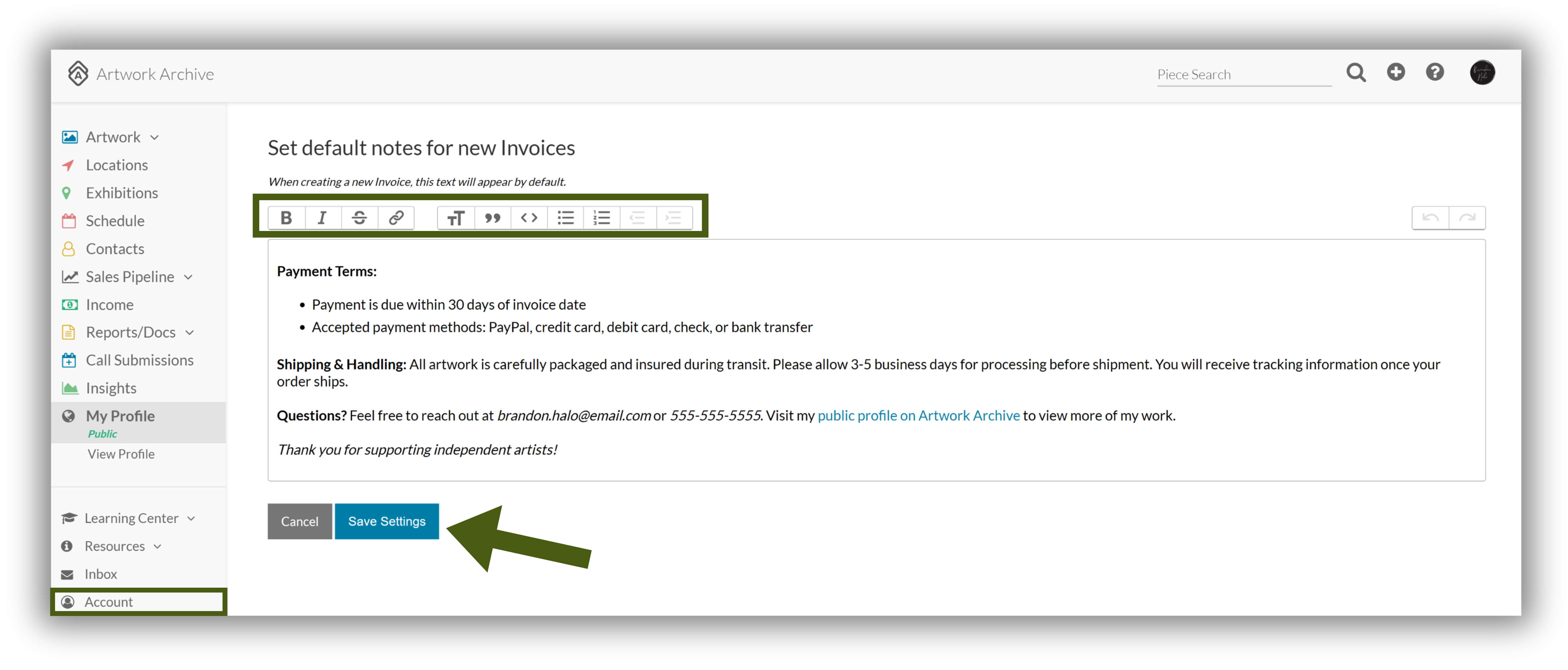
Set default Invoice notes so details like copyright or payment information appear on every Invoice without retyping them.
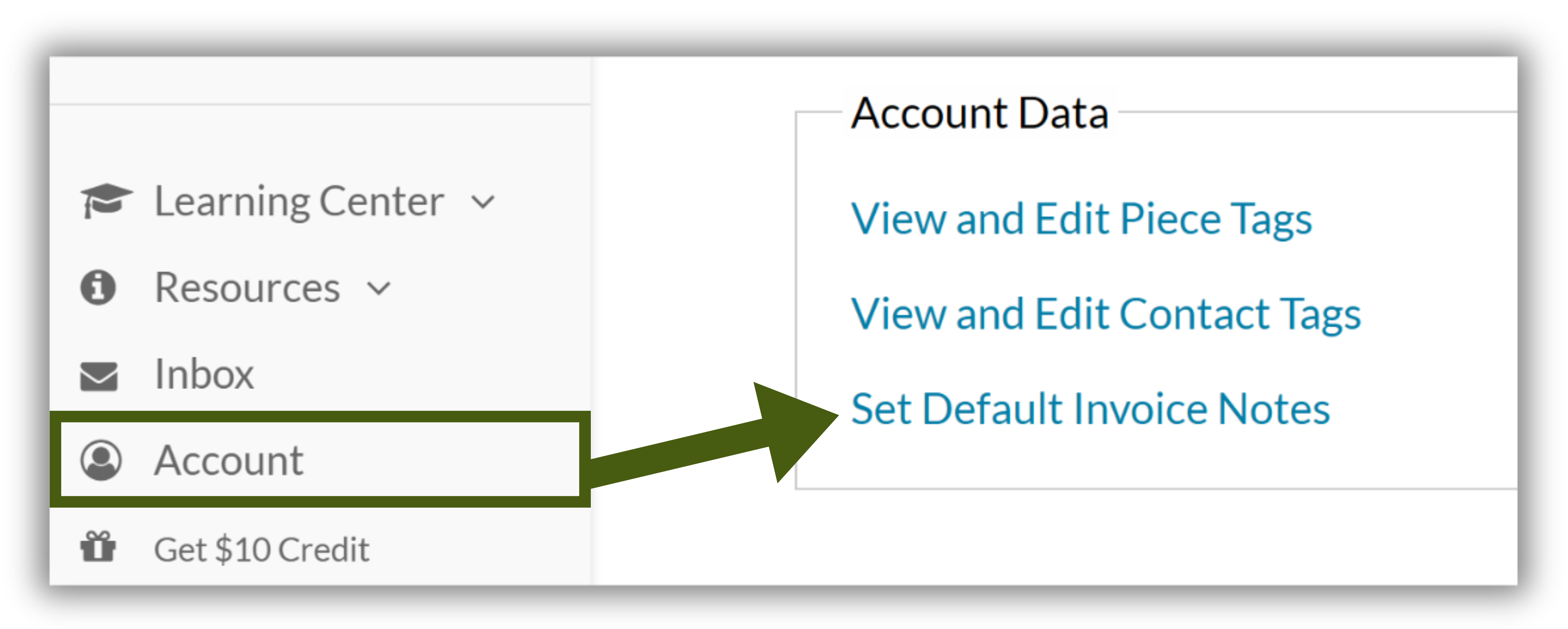
Navigate to Account > Set Default Invoice Notes
Did you know?
The rich text editor in the Set default notes for new invoice section lets you format your text so important information stands out. Use bold for headings, italics for emphasis, and bulleted or numbered lists to organize details like payment terms or shipping policies.
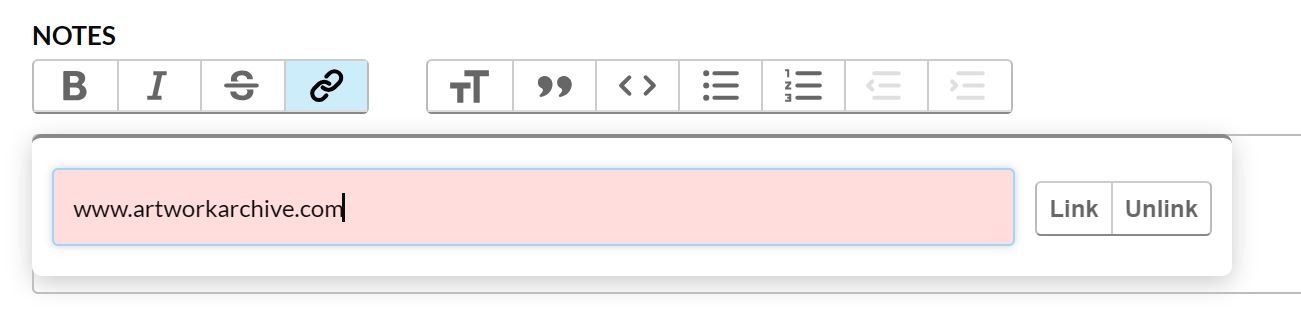
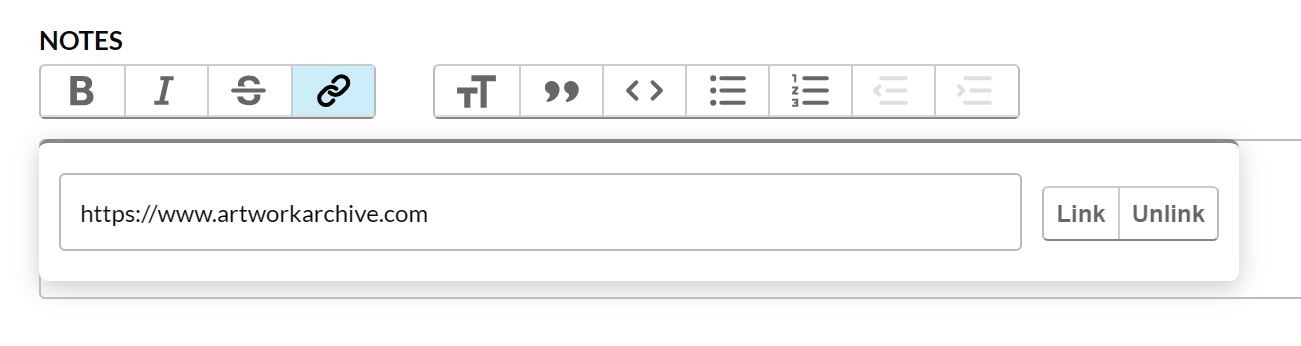
The link button lets you add clickable links to your website or Public Profile. Once you save your default notes, they appear at the bottom of every new Invoice you create.
Note:
Paste the full URL when you add a hyperlink in the Notes field. Your URL needs to start with https:// or the link will not work. Always copy the full address from your browser address bar.
Correct: https://www.artworkarchive.com
Incorrect: www.artworkarchive.com, which is missing https://